Best Flipgrid / Flip Alternatives in 2026
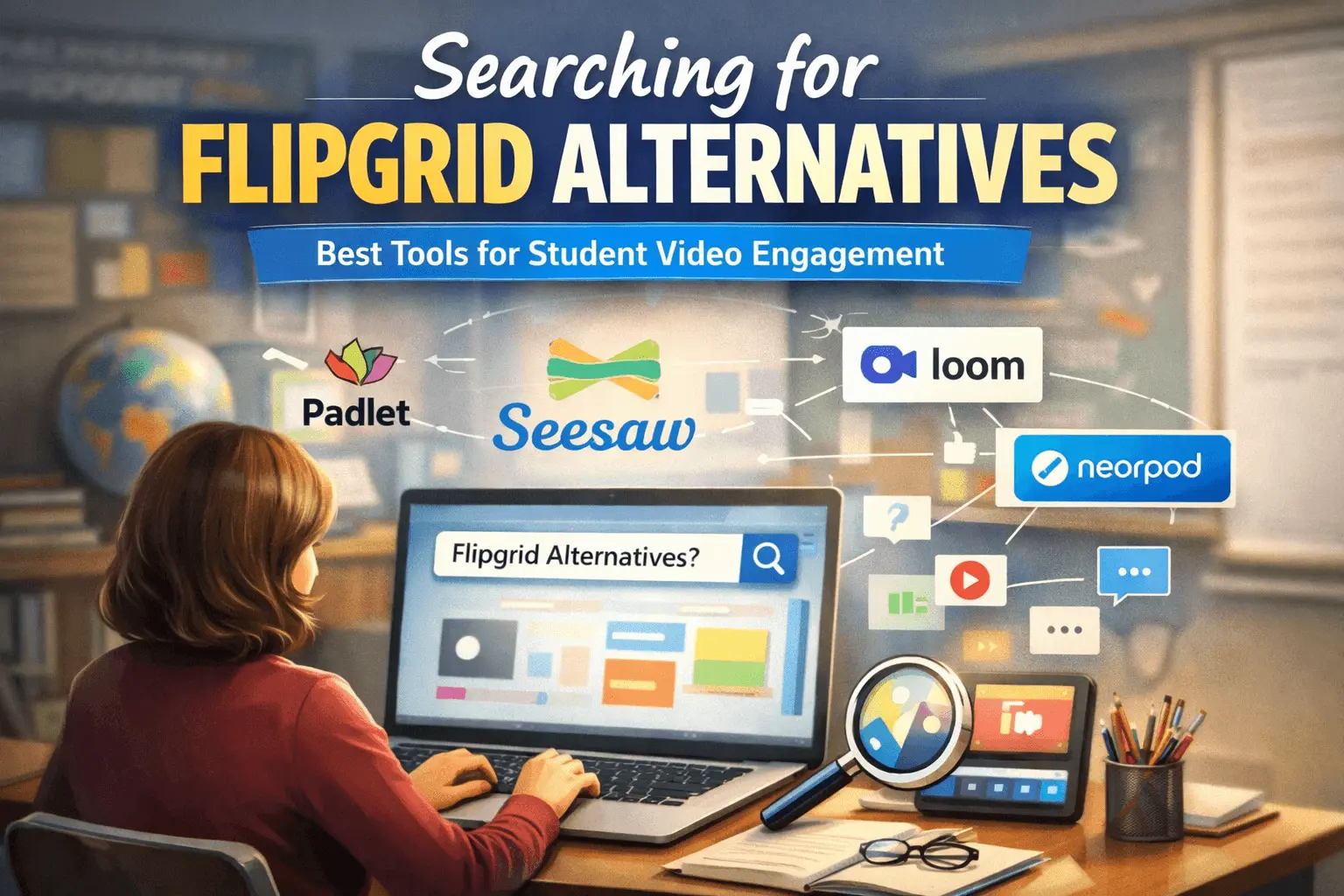
You’ve probably been there, you planned a simple video discussion, students were ready to record their thoughts, and then suddenly Flip (formerly Flipgrid) stopped being the easy, go-to option it used to be. What once worked smoothly now feels uncertain or limited.
That’s exactly why so many teachers are searching for Flipgrid alternatives in 2026. You still need a simple way to run video assignments, collect student video responses, and keep classroom engagement high, just without the friction.
Quick Summary
If you don’t have time to read everything, here’s what matters most:
- There are several reliable alternatives to Flipgrid that work just as well (or better)
- Tools like Padlet and Seesaw are easiest to switch to
- Most platforms support asynchronous learning and peer feedback
- Free plans are enough for most classrooms
- Start simple, test one tool before switching fully
Why Teachers Are Looking for a Flipgrid Replacement
Flipgrid worked because it removed complexity. You could assign a topic, students recorded responses, and discussions happened naturally. That flow is what teachers are trying to recreate now.
The challenge is not just finding apps similar to Flipgrid, but finding one that fits your exact classroom setup. Some teachers need quick video responses, while others want deeper projects or structured lessons.
When evaluating a flipgrid replacement, think about your daily workflow. The right tool should save you time, not add extra steps.
What Teachers Still Need
- Quick student video responses without technical issues
- Clear structure for video assignments
- Built-in feedback or commenting
- Safe environment for students
- Compatibility with existing digital learning tools
Top Flipgrid Alternatives in 2026
There’s no single perfect replacement, but several tools come very close depending on how you teach.
Before picking one, think about how you actually used Flipgrid. Was it for quick speaking tasks, or full video projects? That answer will guide your choice.
1. Padlet
Padlet is one of the most flexible flipgrid alternatives for teachers because it adapts to different teaching styles.
It doesn’t force you into one format, you can create open discussions, structured assignments, or even brainstorming boards. That flexibility makes it useful across subjects.
Key Features
- Video, audio, and text posts
- Visual boards for discussions
- Student commenting and reactions
- Easy sharing via link or QR code
Best For
- Daily classroom engagement
- Quick video discussions
Pricing
- Free plan available (limited boards)
- Paid plans unlock more boards and storage
Integrations
- Google Classroom
- Microsoft Teams
Ease of Use
Students can start posting within seconds, no steep learning curve.
2. Seesaw
Seesaw is designed for simplicity, which is why it’s one of the best flipgrid alternatives free options for younger learners.
It focuses on making student participation easy, even for early grades. Students can record, upload, and respond without needing much guidance.
Key Features
- Video assignments
- Digital student portfolios
- Parent communication tools
Best For
- Elementary classrooms
- Beginner-level digital learning
Pricing
- Free basic version
- Paid school plans
Integrations
- Google Classroom
- LMS systems
Ease of Use
Very easy, ideal for younger students or first-time users.
3. Loom
Loom is slightly different but still works as an alternative to Flipgrid, especially for quick responses or explanations.
Instead of structured discussions, it focuses on fast recording and sharing. That makes it useful for both teachers and students.
Key Features
- Instant video recording
- Shareable links
- Screen + camera recording
Best For
- Student presentations
- Teacher instructions
Pricing
- Free plan available
- Paid upgrades
Integrations
- Google Workspace
Ease of Use
One of the easiest tools, just click and record.
4. Nearpod
Nearpod goes beyond video responses by combining them with interactive lessons. It’s a strong choice if you want more structure.
This makes it ideal for teachers who want to track engagement and guide students step-by-step.
Key Features
- Interactive lessons
- Video-based questions
- Live and asynchronous learning modes
Best For
- Structured teaching
- Engagement tracking
Pricing
- Free tier available
- Paid plans for advanced tools
Integrations
- Google Classroom
- Microsoft Teams
Ease of Use
Moderate and offers more control.
Comparison Table
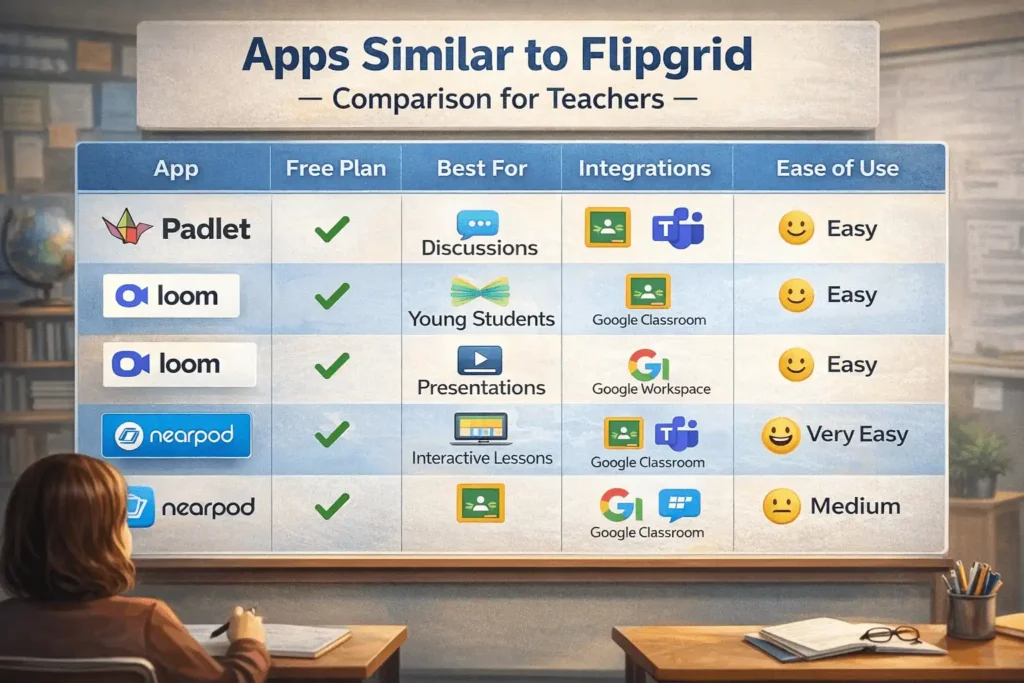
Before choosing a tool, it helps to see everything side by side. This quick comparison highlights what each platform does best and how easy it is to use in a real classroom.
| Tool Name | Free Plan | Best For | Integrations | Ease of Use |
|---|---|---|---|---|
| Padlet | Yes | Discussions | Google Classroom, Teams | Easy |
| Seesaw | Yes | Young students | Google Classroom | Easy |
| Loom | Yes | Presentations | Google Workspace | Very Easy |
| Nearpod | Yes | Interactive lessons | Google Classroom, Teams | Medium |
Features to Look for in Apps Similar to Flipgrid
Not every tool will feel the same as Flipgrid, and that’s okay. What matters is choosing one that supports your teaching style.
When reviewing websites like Flipgrid, focus on features that actually impact your classroom experience.
- Student video responses: Should be quick and simple
- Asynchronous learning: Students can respond anytime
- Peer feedback: Comments or reactions
- Moderation tools: Approve content before sharing
- Device compatibility: Works across phones and laptops
If a tool checks these boxes, it’s a strong candidate.
Real Classroom Use Case
A middle school English teacher wants students to practice speaking skills weekly. Instead of Flipgrid, they use Padlet.
Students:
- Open a shared board
- Record a 1-minute response
- Watch two classmates’ videos
- Leave feedback
The teacher quickly reviews all submissions in one place, tracks participation, and gives short comments. The process feels familiar, just using a different tool.
How to Choose the Right Flipgrid Alternative
Choosing between apps like Flipgrid can feel overwhelming at first, but a simple process helps narrow it down.
Step-by-Step
- Identify your main goal
Discussions, presentations, or projects - Consider student age
Younger students need simpler tools - Check integrations
Make sure it works with your existing setup - Test usability
Try creating a sample assignment - Start small
Use one class before scaling
Pricing Breakdown (Free vs Paid)
Most free alternatives to Flipgrid give you enough to run regular classes without spending anything.
Free plans usually include:
- Basic video assignments
- Limited storage
- Core engagement features
Paid plans add:
- More storage
- Advanced feedback tools
- Analytics and reporting
You only need to upgrade if your classroom actually requires those extras.
Pros and Cons of Switching
Switching tools always comes with trade-offs. Understanding them early helps you adjust faster.
Pros
- More flexibility than Flip
- Better customization options
- Variety of tools for different needs
Cons
- Initial learning curve
- Students need time to adapt
- Some advanced features require payment
Common Objections (and Honest Answers)
“What if students get confused?”
Most tools are simple enough that students adapt quickly. A short demo or practice activity usually solves this within one lesson.
“What if it doesn’t feel like Flipgrid?”
It probably won’t, but that’s not always a bad thing. Many alternatives for Flipgrid offer better features once you get used to them.
Privacy and Student Safety (Important)
When choosing a replacement for Flipgrid, always review privacy settings carefully.
Look for:
- COPPA compliance for younger students
- Private sharing options
- Teacher control over visibility
Avoid tools that make student content public by default. Keeping a safe environment should always come first.
What to Do Next
Don’t overthink the switch. Pick one tool, preferably Padlet or Seesaw, and try a simple video assignment this week. That’s the fastest way to see what works for your classroom.Then continue with our Flipgrid guide for teachers, explore video assignments tutorials, or learn how to integrate tools with Google Classroom to improve your workflow.
FAQs